Skip to content
Simulation

SeaX Core platform

One platform, one view for each party

SeaX Core connects the SX-1 robot with the people who work with it. You see your site with SeaX View, your security company handles alerts with SeaX Live and your alarm receiving centre gets them through SeaX Connect.SeaX Core connects the SX-1 robot with each party, and each party works with its own app.

The platform

Each party works with its own app

SeaX Core stays in the background: it is the platform the apps run on. It holds the site set-up, permissions, video and history, and each person sees their part and nothing more. SeaX AI maintains the robots and supervises them technically.

Platform diagram: SX-1 robots connect to SeaX Core, and on top of SeaX Core run SeaX View for the customer, SeaX Live and SeaX Field inside SeaX Pro for professionals, and SeaX Connect for alarm receiving centres and third-party software.

Diagram

In the app stores, two apps: SeaX View, for customers, and SeaX Pro, for professionals, with SeaX Live and SeaX Field inside.

SeaX View

For the site owner

What it is for

  • See your site right now: armed zones, the robot on its route and who handles the alerts.
  • Get every alert with its photo and its zone, even when your phone is on silent.
  • Decide which zones alert, and when.
Mockup · sample data
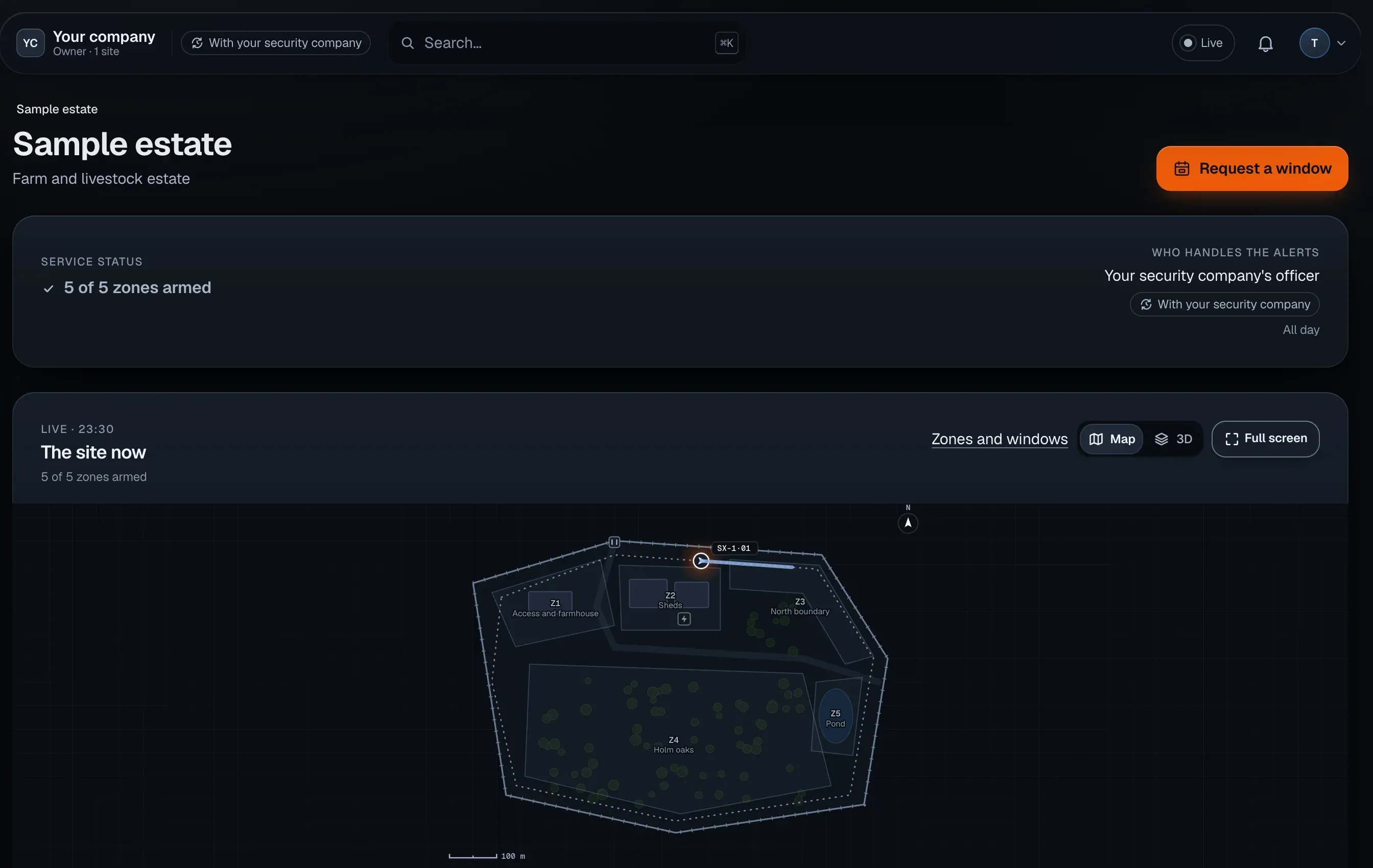
Mockup of SeaX View on the web: the Sample estate with 5 of 5 zones armed, “Who handles the alerts: your security company’s officer” and the “The site now” map with the SX-1·01 robot on its route.
Mockup · sample data
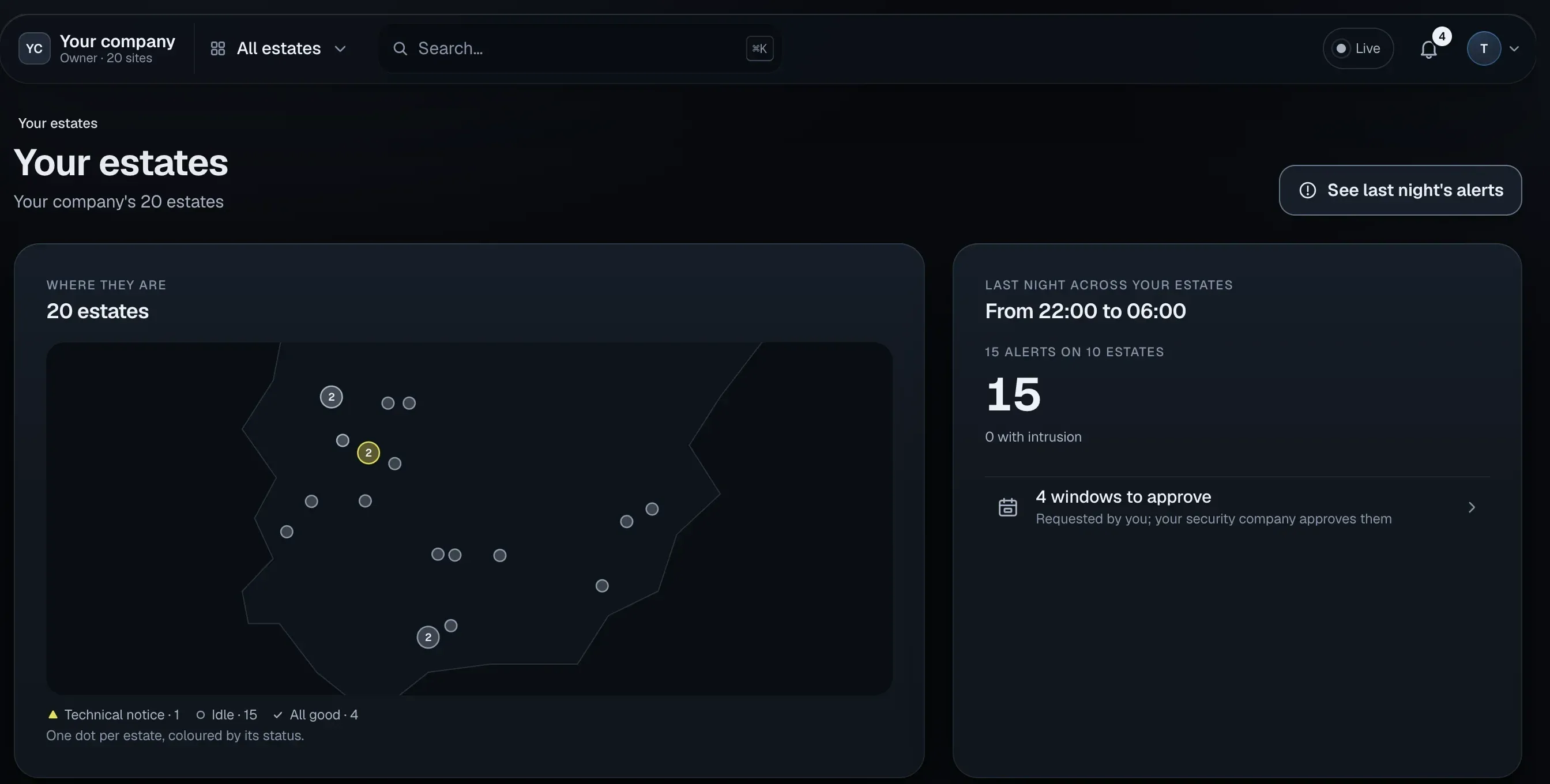
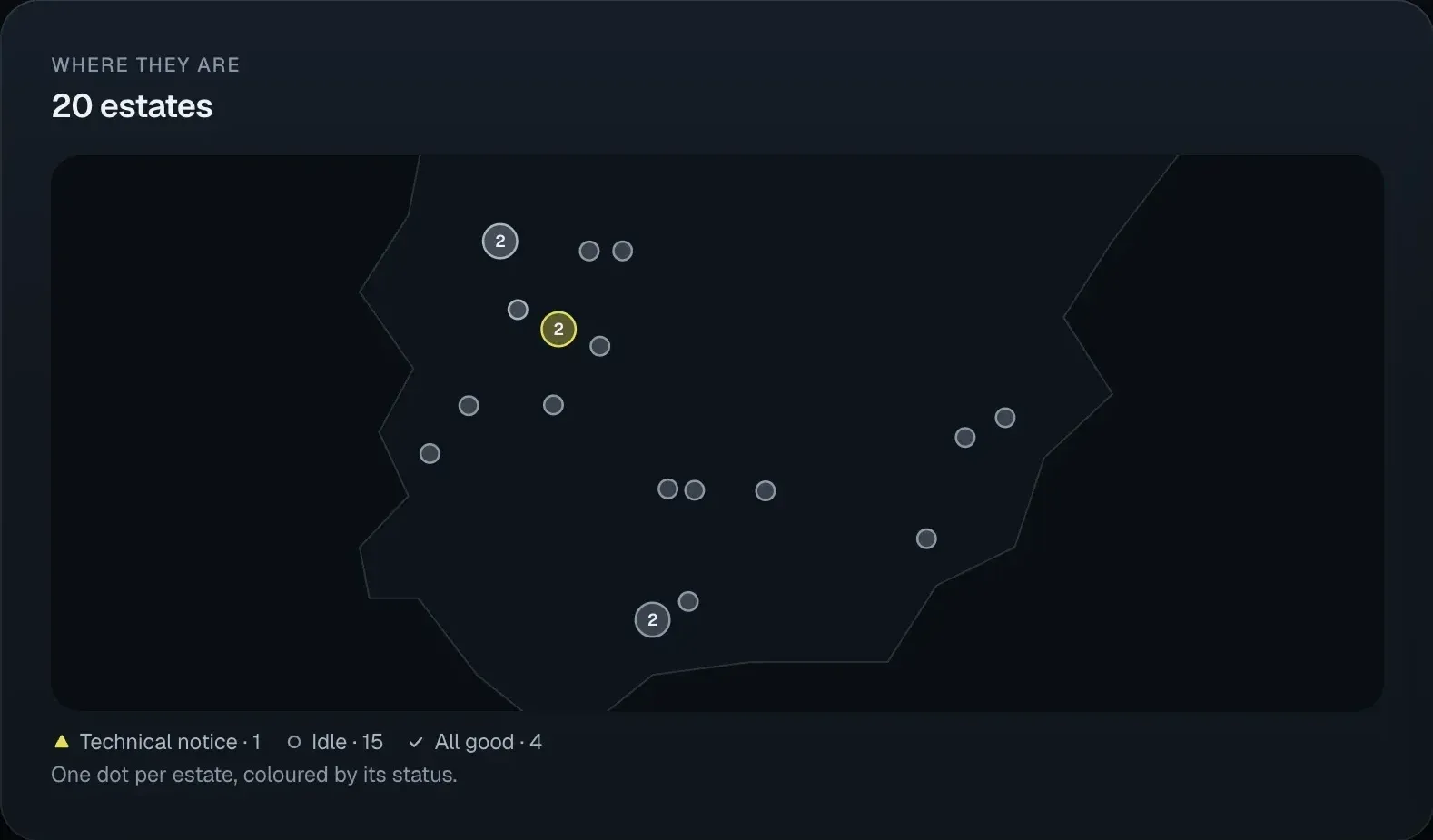
Mockup of “Your estates” in SeaX View: a map with 20 sample estates, each in the colour of its status, and last night’s summary: 15 alerts across 10 estates, none of them an intrusion, and 4 work windows awaiting approval.Mockup of “Your estates” in SeaX View: a map with 20 sample estates, each in the colour of its status, and last night’s summary: 15 alerts across 10 estates, none of them an intrusion, and 4 work windows awaiting approval.
Mockup · sample data
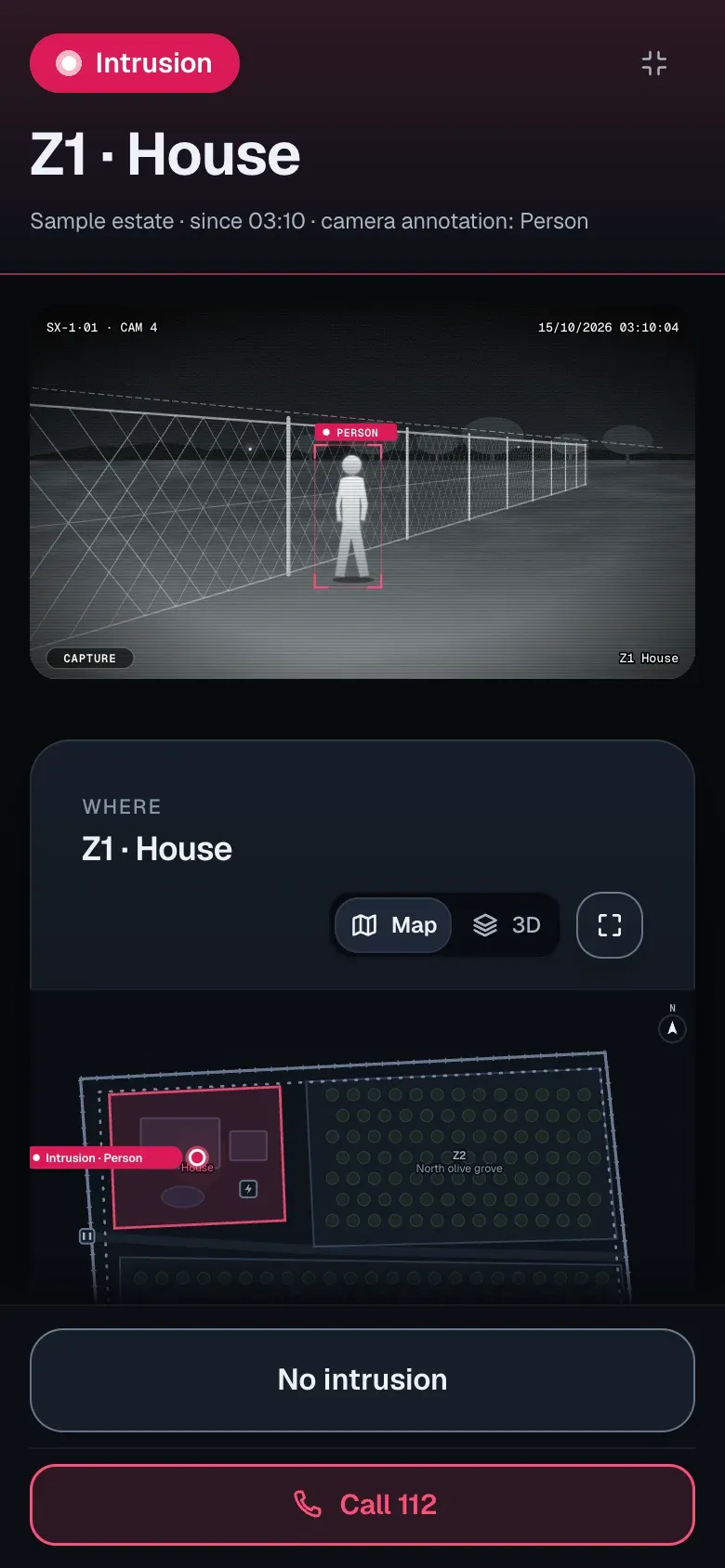
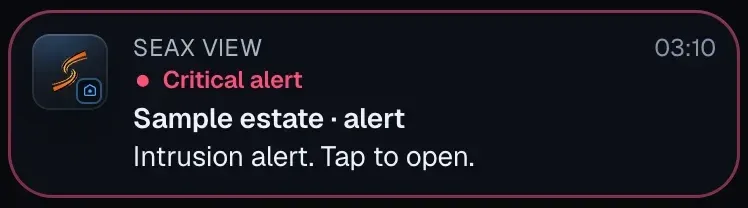
Mockup of SeaX View on the owner’s phone: an intrusion alert in Z1 · House at 03:10, with the robot’s photo and the person marked, the “Where” map and the buttons “No intrusion” and “Call 112”. On top, the notification “Critical alert · Sample estate”.
On the web, your site right now and, if you have several, all of them on one map. On your phone, every alert with its photo and its zone.

Which zones alert, and when

Each zone, with its own schedule. During works, it is paused with an end time and starts alerting again on its own.

SeaX Live

For the security officer · Included in SeaX Pro

What it is for

  • The alert reaches the post with the live camera and the position on the map.
  • The security officer decides: checks it, closes it or passes it to the ARC.
  • From the gatehouse or from the phone, anywhere on the site.
Mockup · sample data
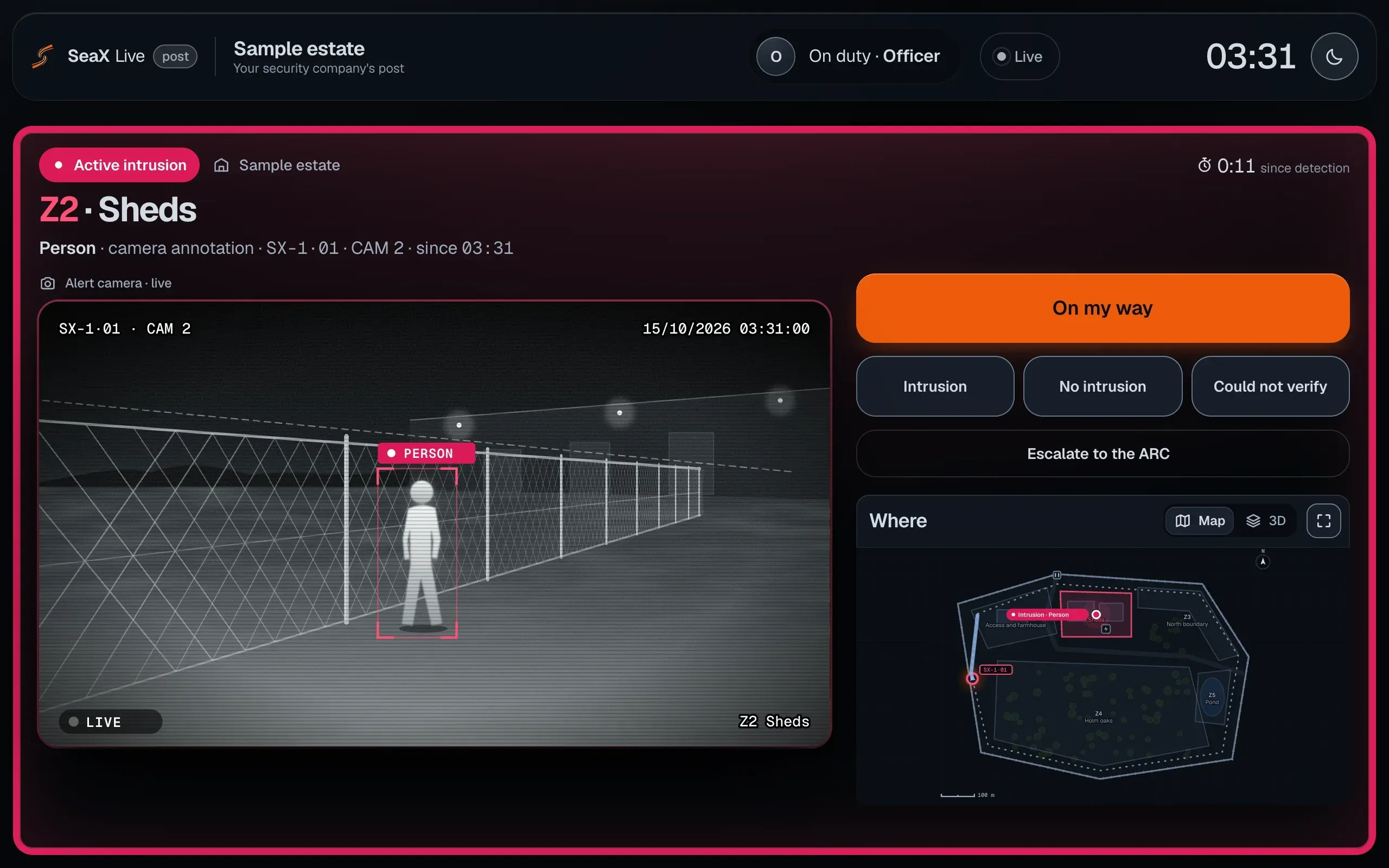
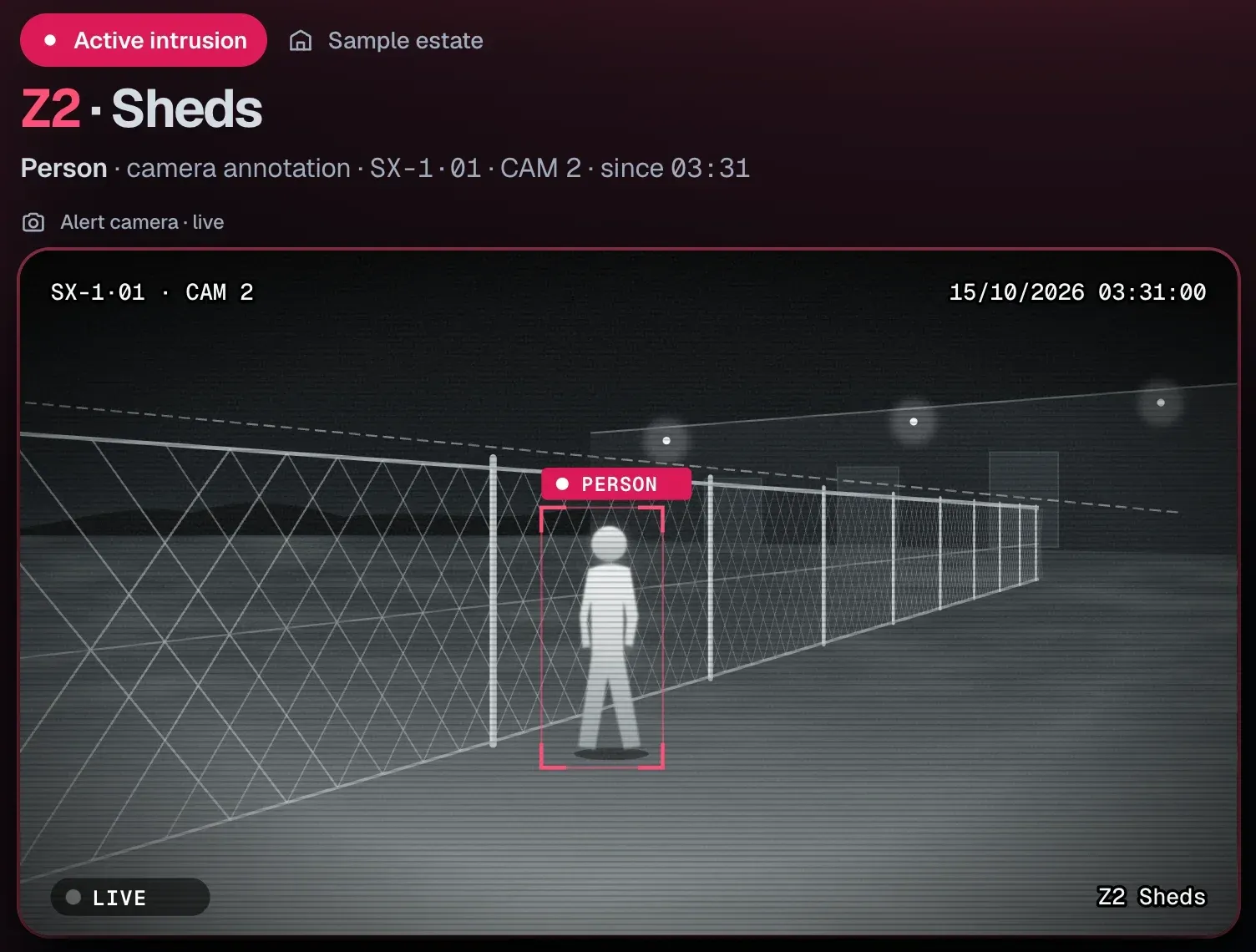
Mockup of SeaX Live at your security company’s post: an active intrusion in Z2 · Sheds at 03:31, with camera 2 of the SX-1·01 robot live and the person marked, the “On my way” button, the outcomes “Intrusion”, “No intrusion” and “Could not verify”, “Escalate to the ARC” and the “Where” map.Mockup of SeaX Live at your security company’s post: an active intrusion in Z2 · Sheds at 03:31, with camera 2 of the SX-1·01 robot live and the person marked, the “On my way” button, the outcomes “Intrusion”, “No intrusion” and “Could not verify”, “Escalate to the ARC” and the “Where” map.
Mockup · sample data
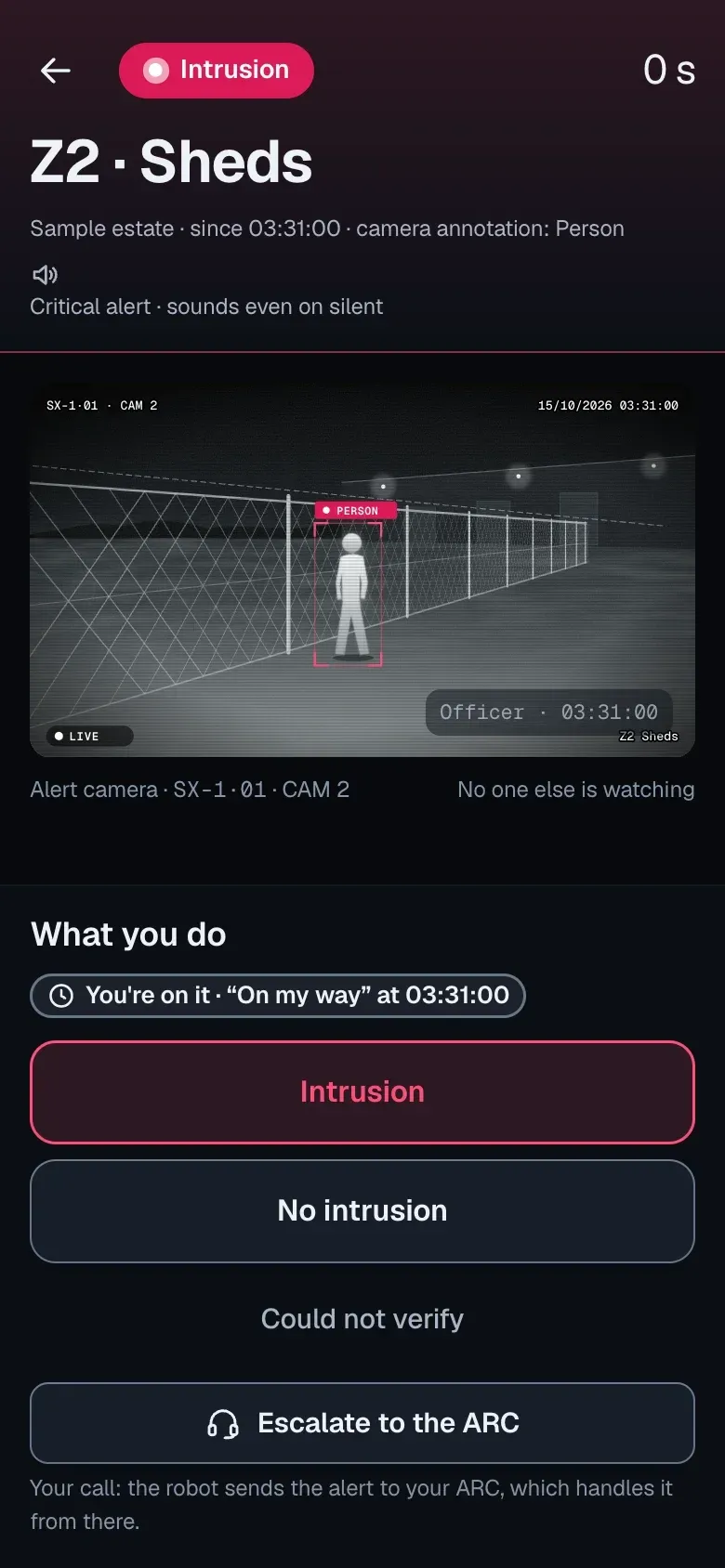
Mockup of SeaX Live on the security officer’s phone, already on the way: the same alert with the live camera, an alert that sounds even when the phone is on silent, and the buttons to close it with what they found (intrusion, no intrusion or could not verify) or escalate it to the ARC.
The alert reaches the post with the live camera. Your security officer decides.

SeaX Field

For the technician and installer · Included in SeaX Pro

What it is for

  • Review and adjust the site map in 3D: zones, routes and stops.
  • Test the alerts before going live.
  • Maintenance checks, in the same app.
Mockup · sample data
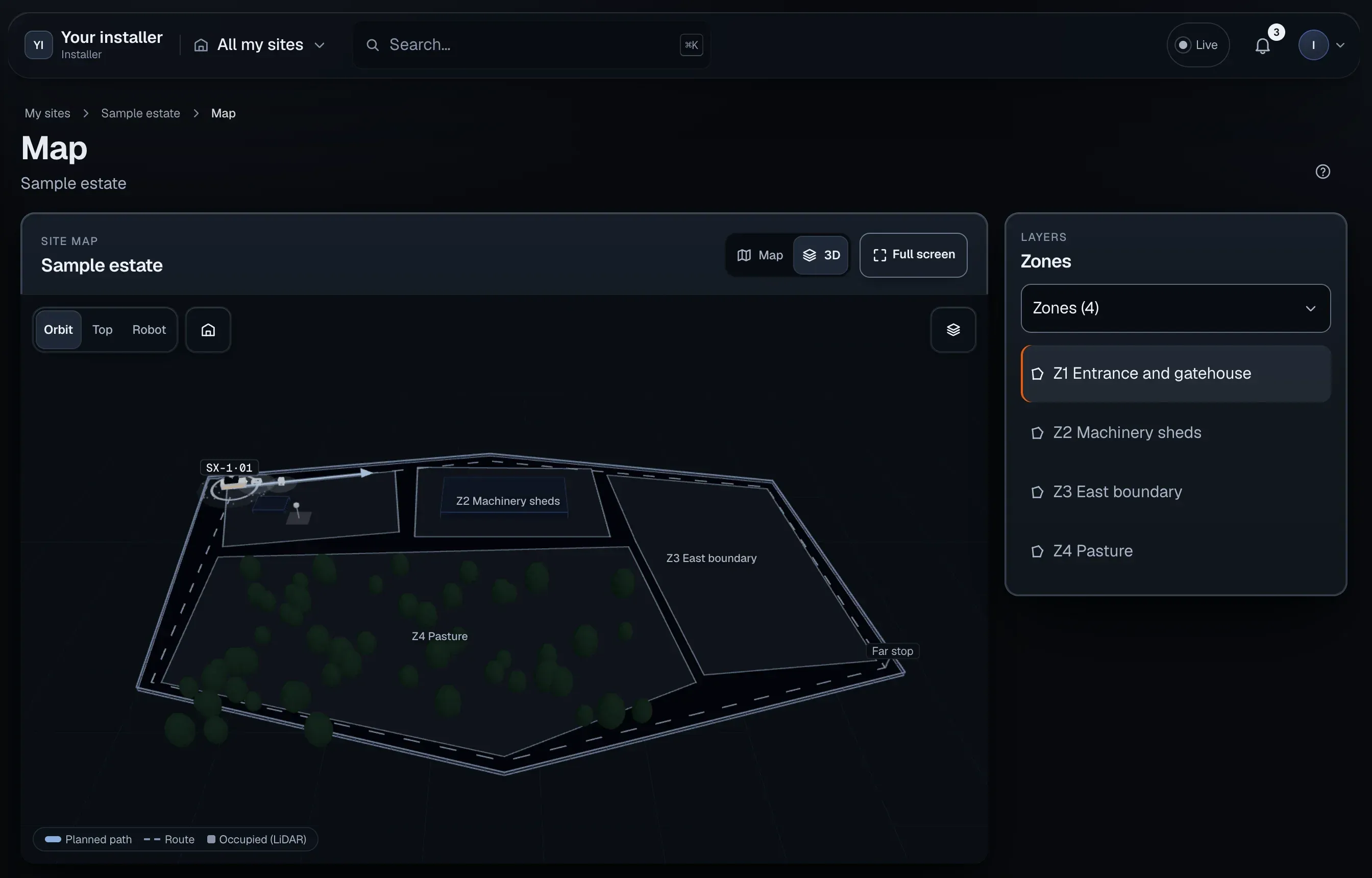
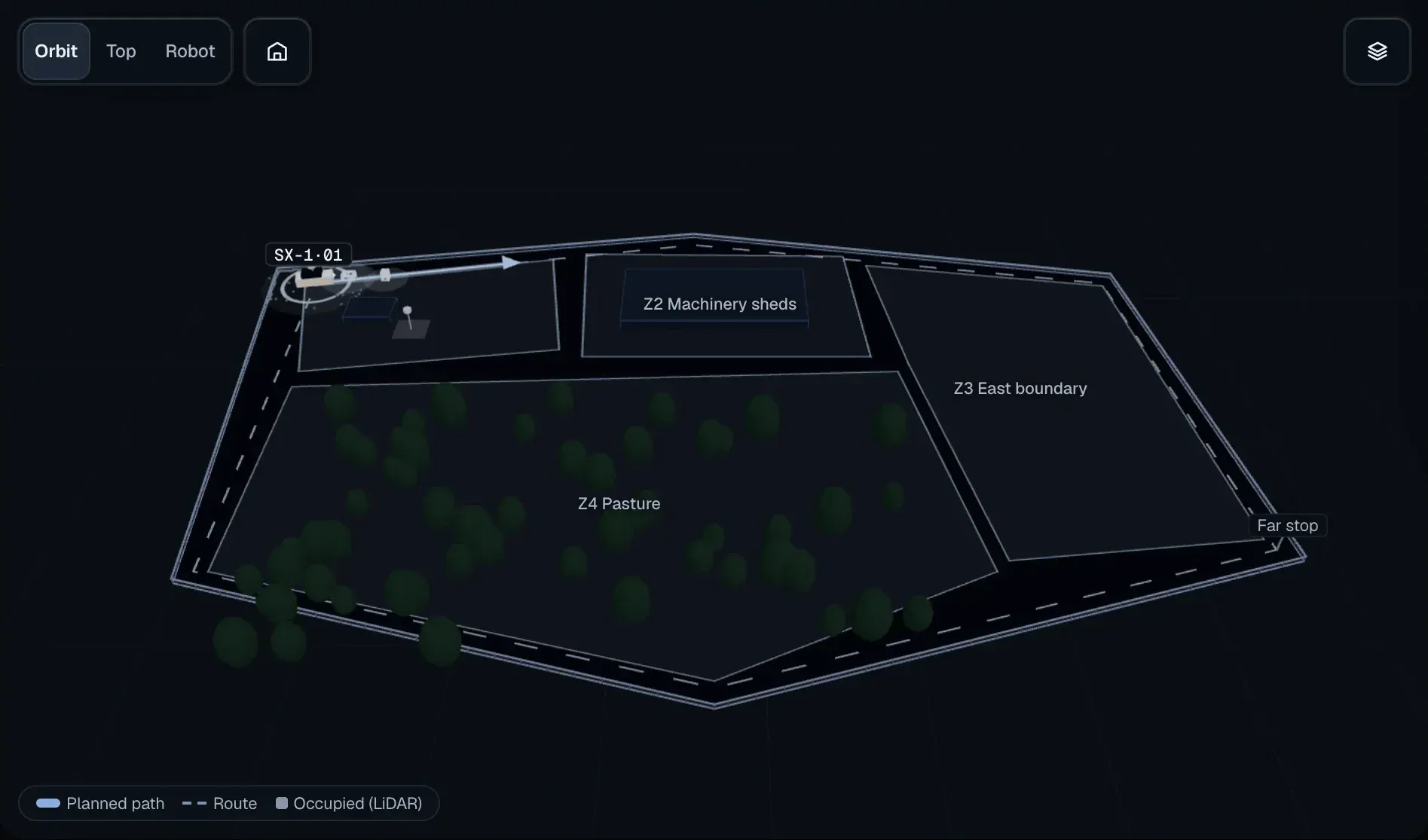
Mockup of SeaX Field: the 3D map of the Sample estate with its four zones, the SX-1·01 robot on its route and the “Zones” layer open.Mockup of SeaX Field: the 3D map of the Sample estate with its four zones, the SX-1·01 robot on its route and the “Zones” layer open.
Mockup · sample data
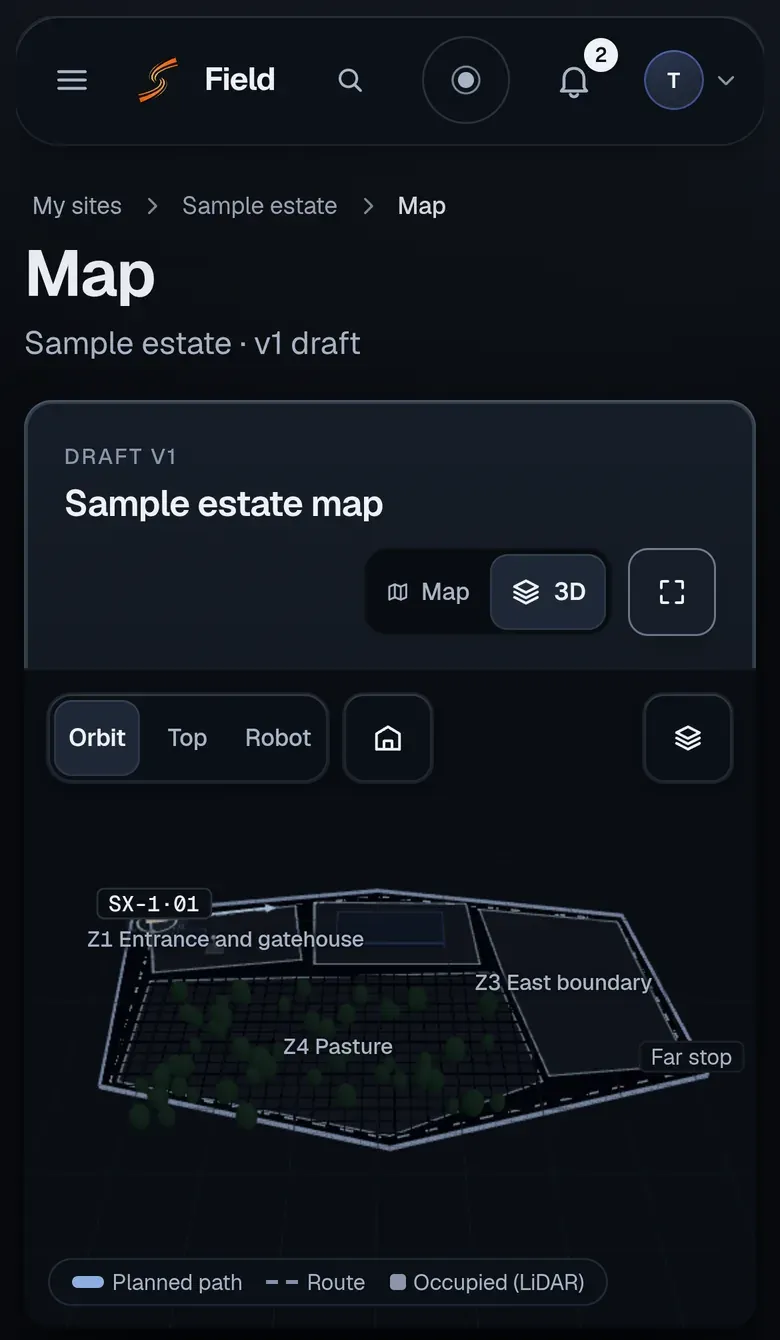
SeaX Field mockup on a phone: the map of a sample estate in 3D, with its four zones, the SX-1 robot’s route, its stops and what the LiDAR sees.
On the tablet and on the phone, the site in 3D with its zones and the robot’s route.

SeaX Connect

For the alarm receiving centre (ARC)

What it is for

  • Every alert reaches your centre over the standard protocol.
  • With image, classification and position, ready to verify.
  • Your software gets it too, through an API.
Mockup · sample data
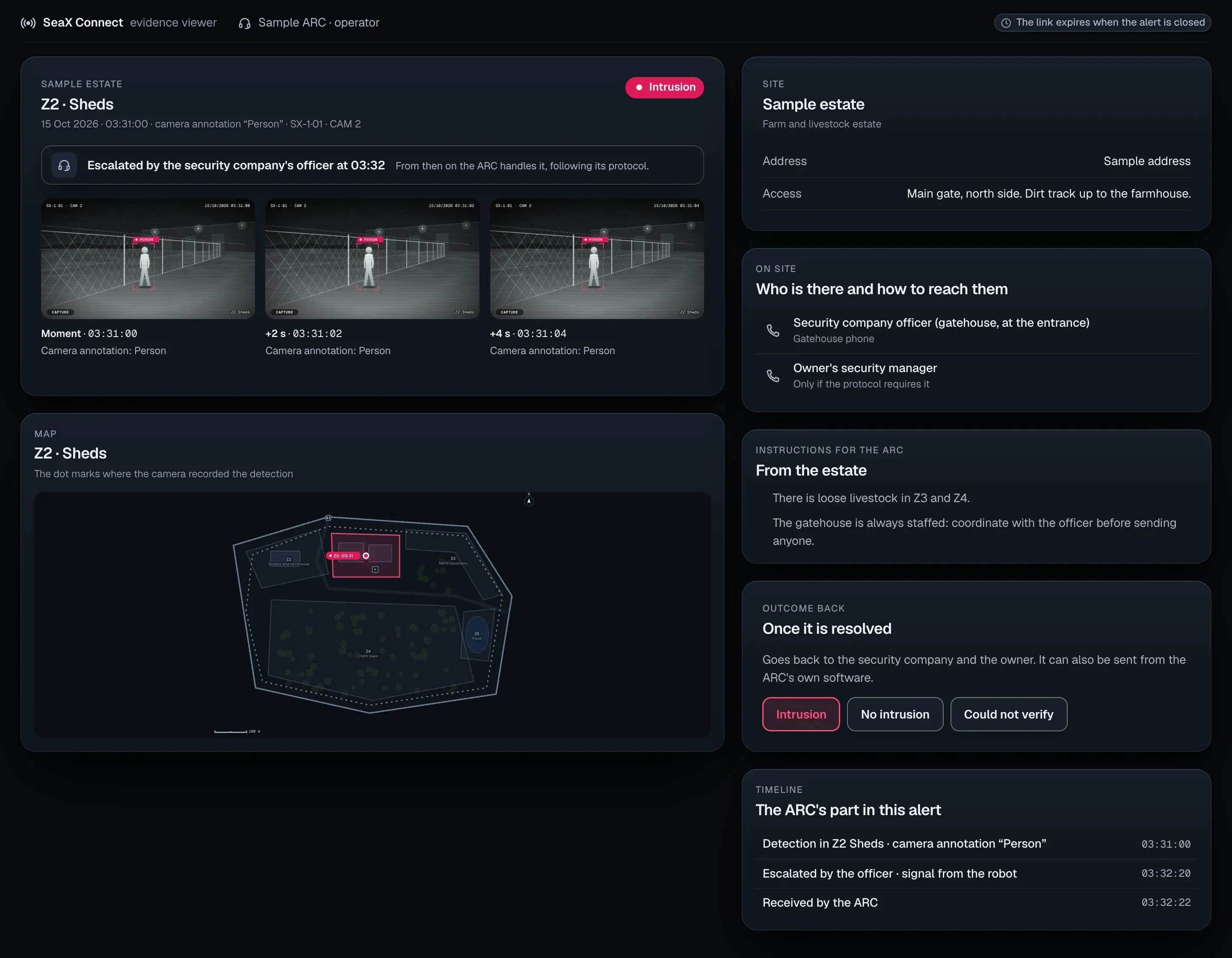
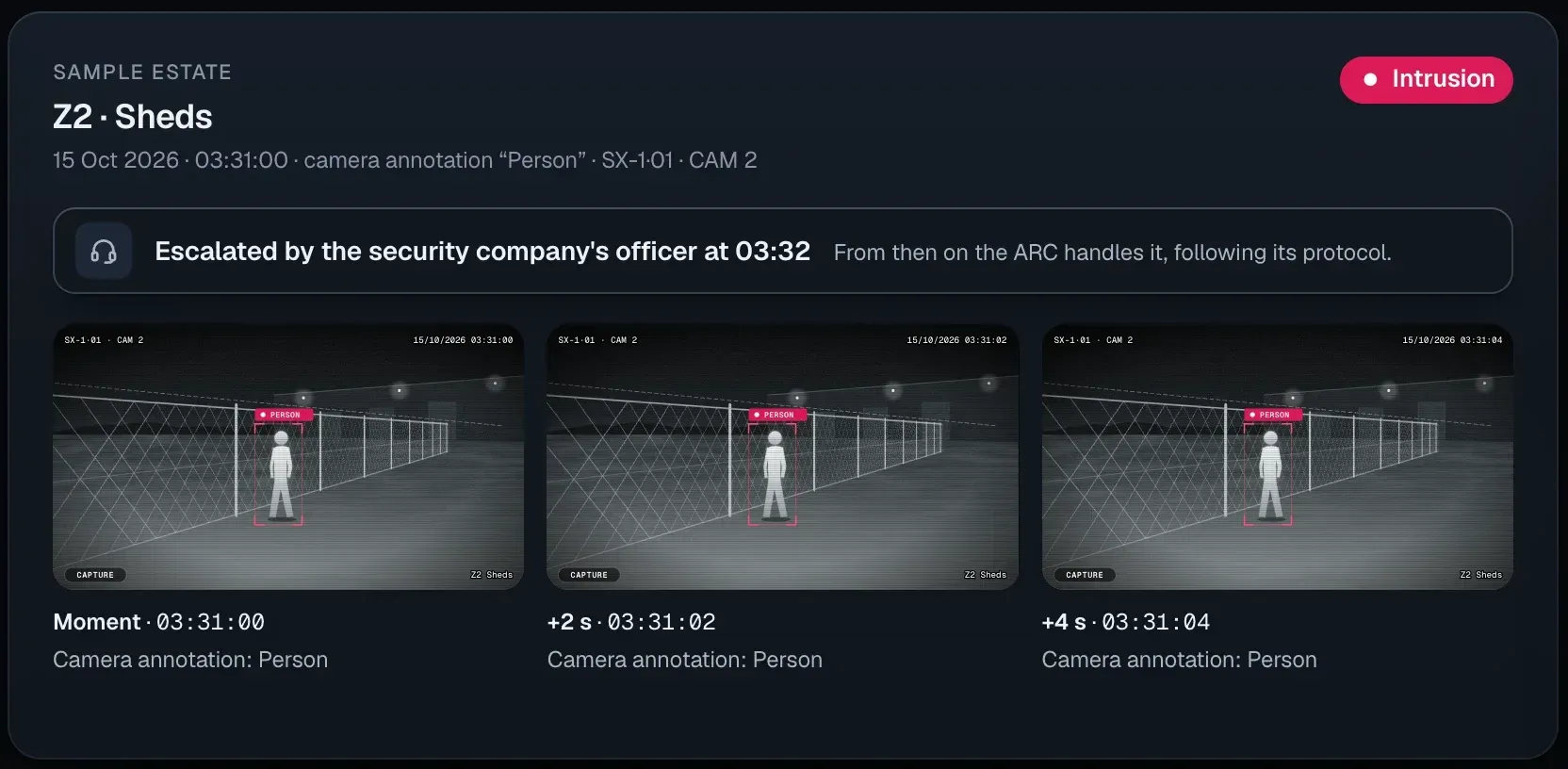
Mockup of the SeaX Connect viewer at your centre: an intrusion alert in zone 2 of a sample estate, escalated by the security company’s officer at 03:32, with three time-stamped photos, the site plan with the point of the detection, who is on site and how to reach them, the instructions for the centre, the outcome buttons and the alert’s timeline.Mockup of the SeaX Connect viewer at your centre: an intrusion alert in zone 2 of a sample estate, escalated by the security company’s officer at 03:32, with three time-stamped photos, the site plan with the point of the detection, who is on site and how to reach them, the instructions for the centre, the outcome buttons and the alert’s timeline.
The SeaX Connect viewer: time-stamped photos, the plan and who is on site. Your operator decides.
Simulation

How an alert travels

From the robot to whoever handles it: your security company, your ARC or you. Nobody at SeaX AI handles the alert.

01 · The SX-1

Detects

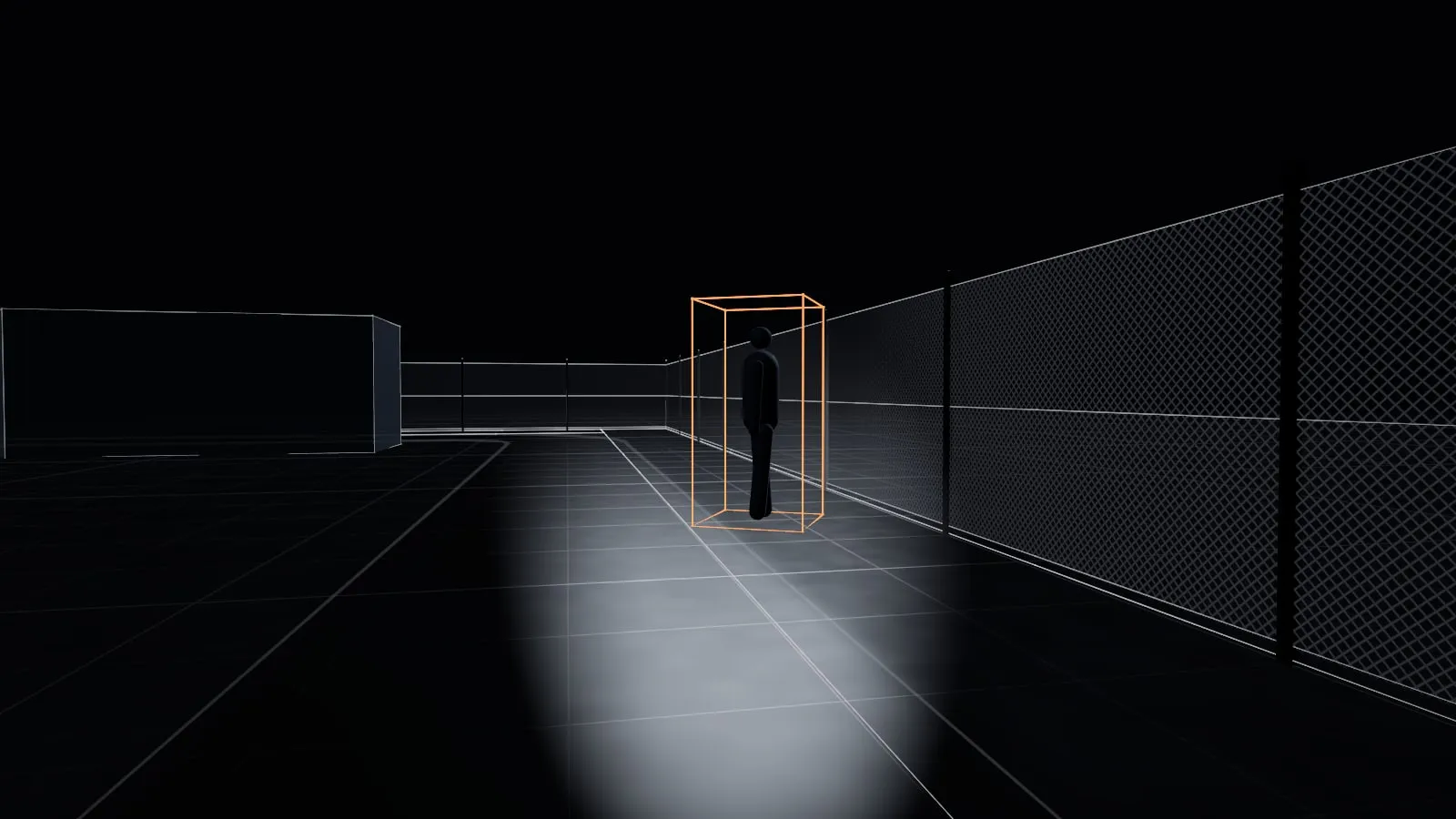
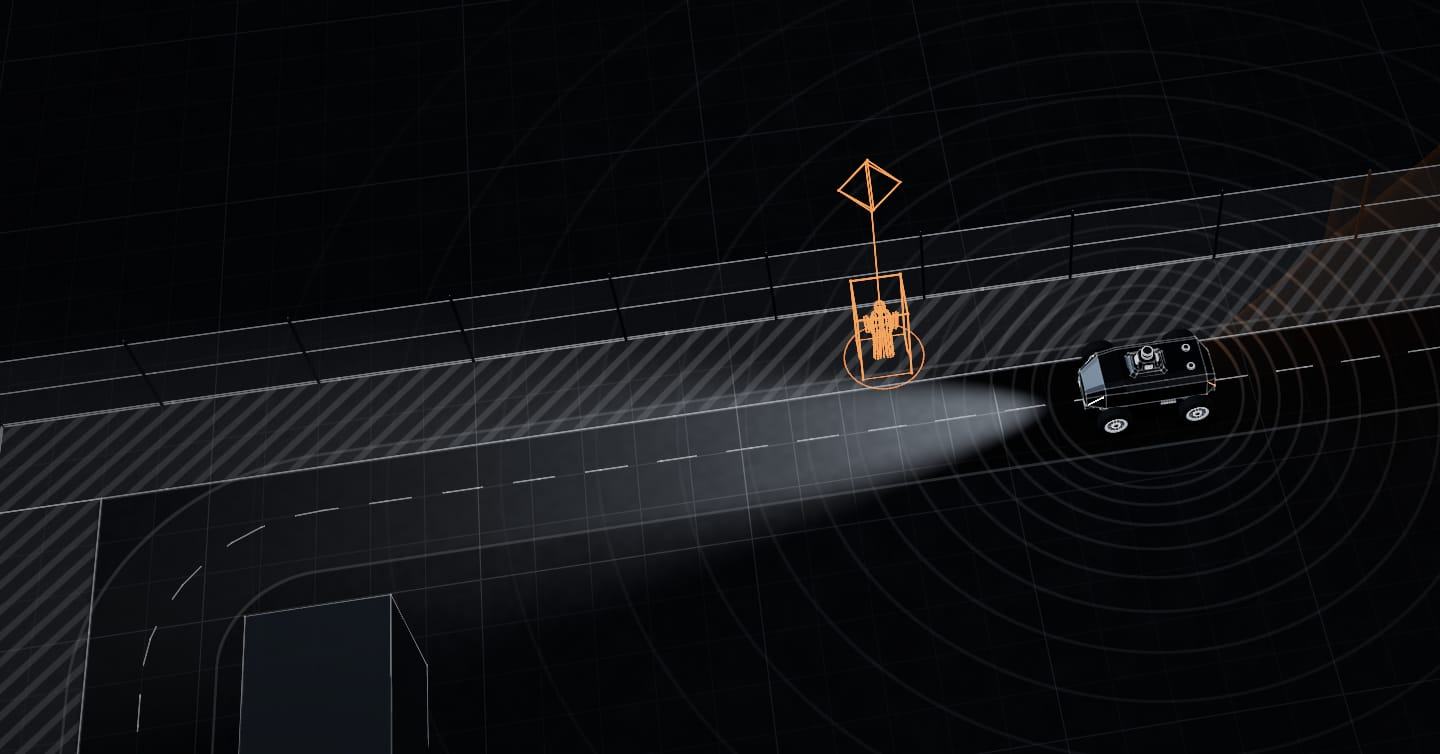
Detects a person inside one of the site’s detection zones and places them on the map.
02 · SeaX Core

Delivers it

The photo, the live camera and the position reach the app of whoever handles the alert.

03 · Your security company

Decides

With SeaX Live, your security officer sees the alert and decides on the response. If needed, they escalate it to your ARC.

04 · Your ARC

Verifies and manages

Gets the alert through SeaX Connect, verifies it and manages the response under your contract with them.

If our server goes down, the robot keeps to its route and alerts keep reaching your ARC.

What happens if something fails

05 · For you

A record is kept

Every alert leaves a record: photos, time, position and who decided. You can keep it as evidence. You can see it in SeaX View.

Privacy

Each one sees their part

Your cameras, your rules: who looks, what is masked and how long it is kept.
Mockup · sample data
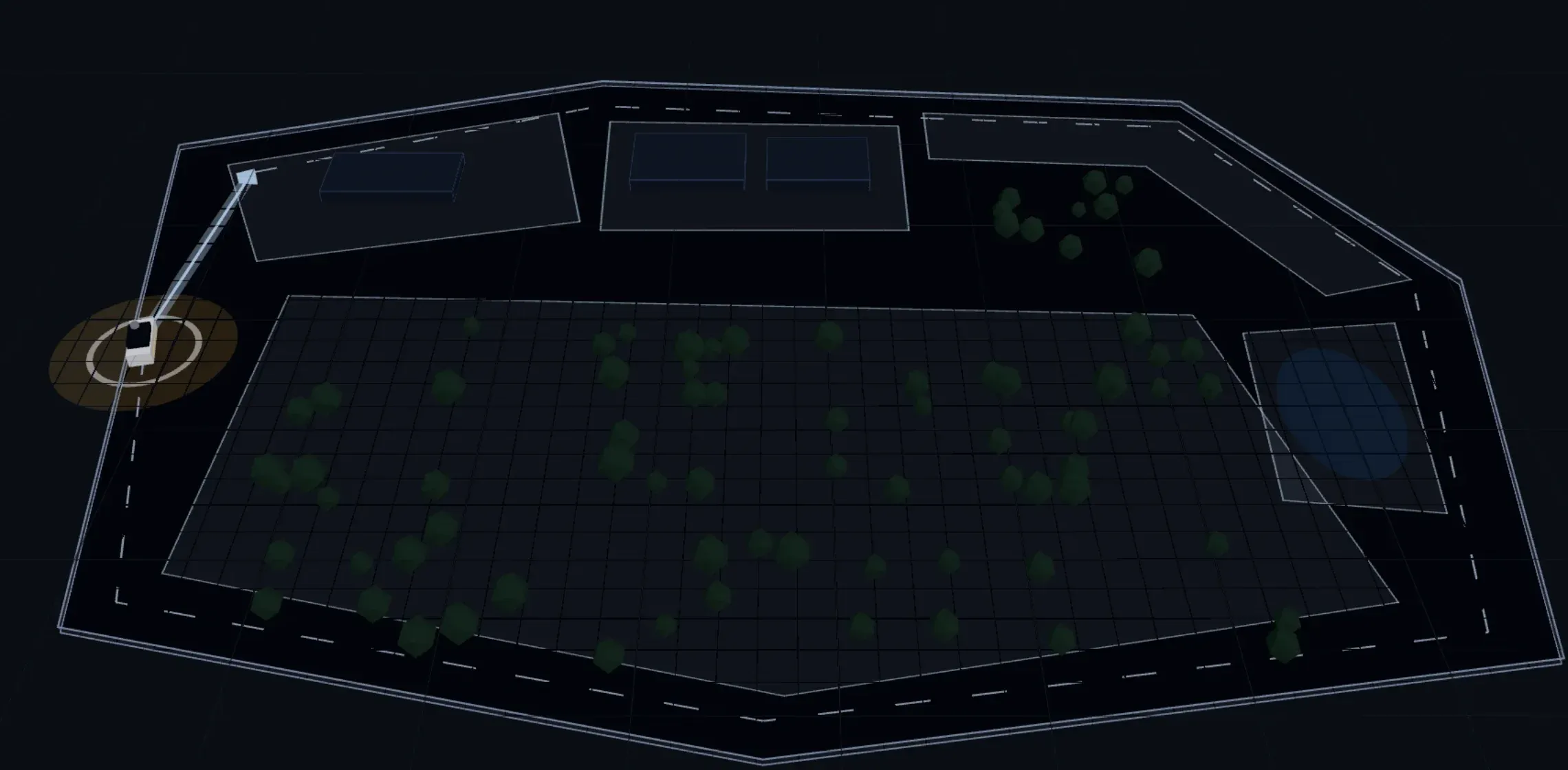
Mockup of the SeaX View 3D view: the Sample estate with its zones, buildings, holm oaks and pond, and the SX-1 robot with its planned path.
The SX-1 on its route, live.
Mockup · sample data
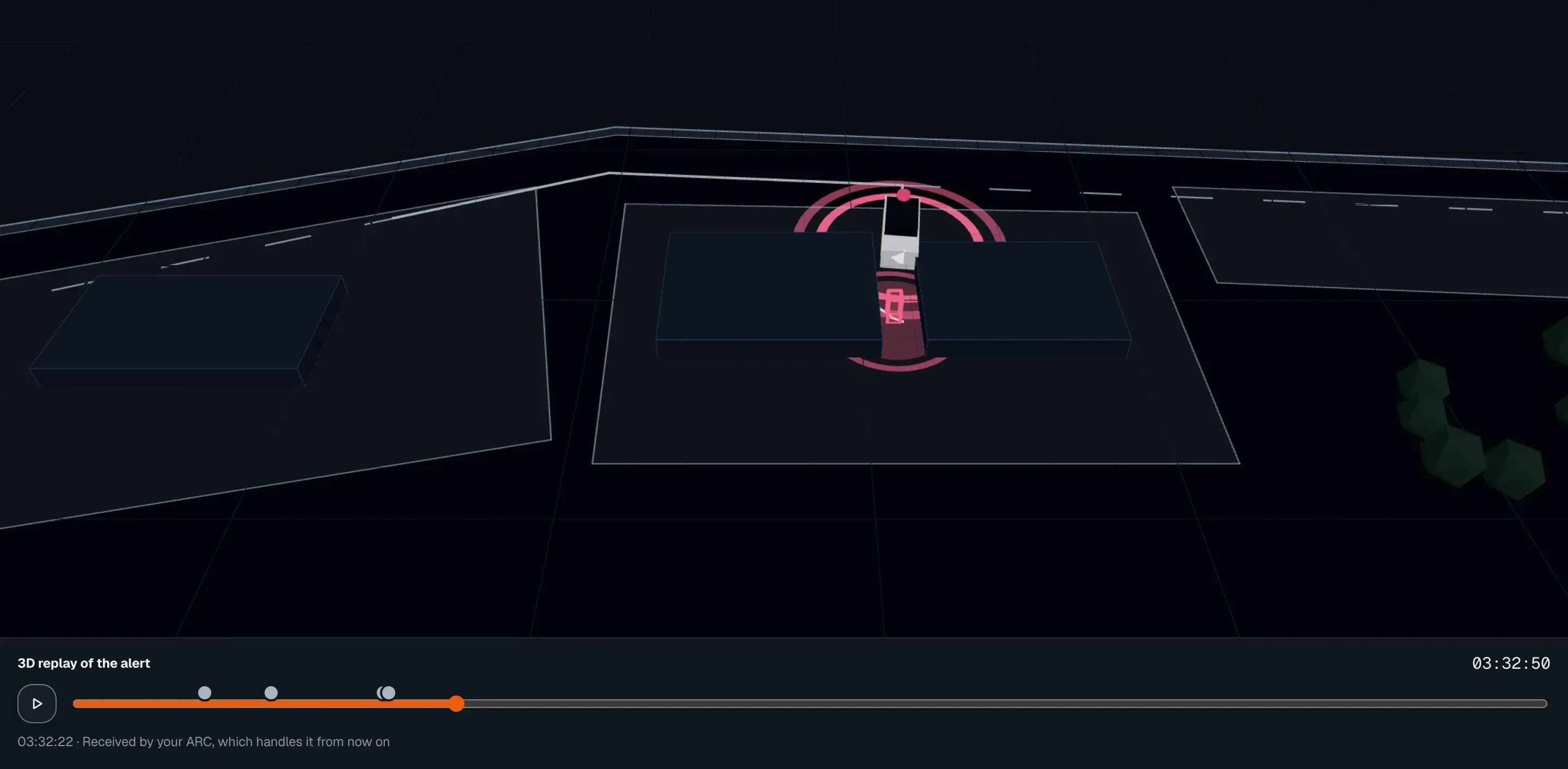
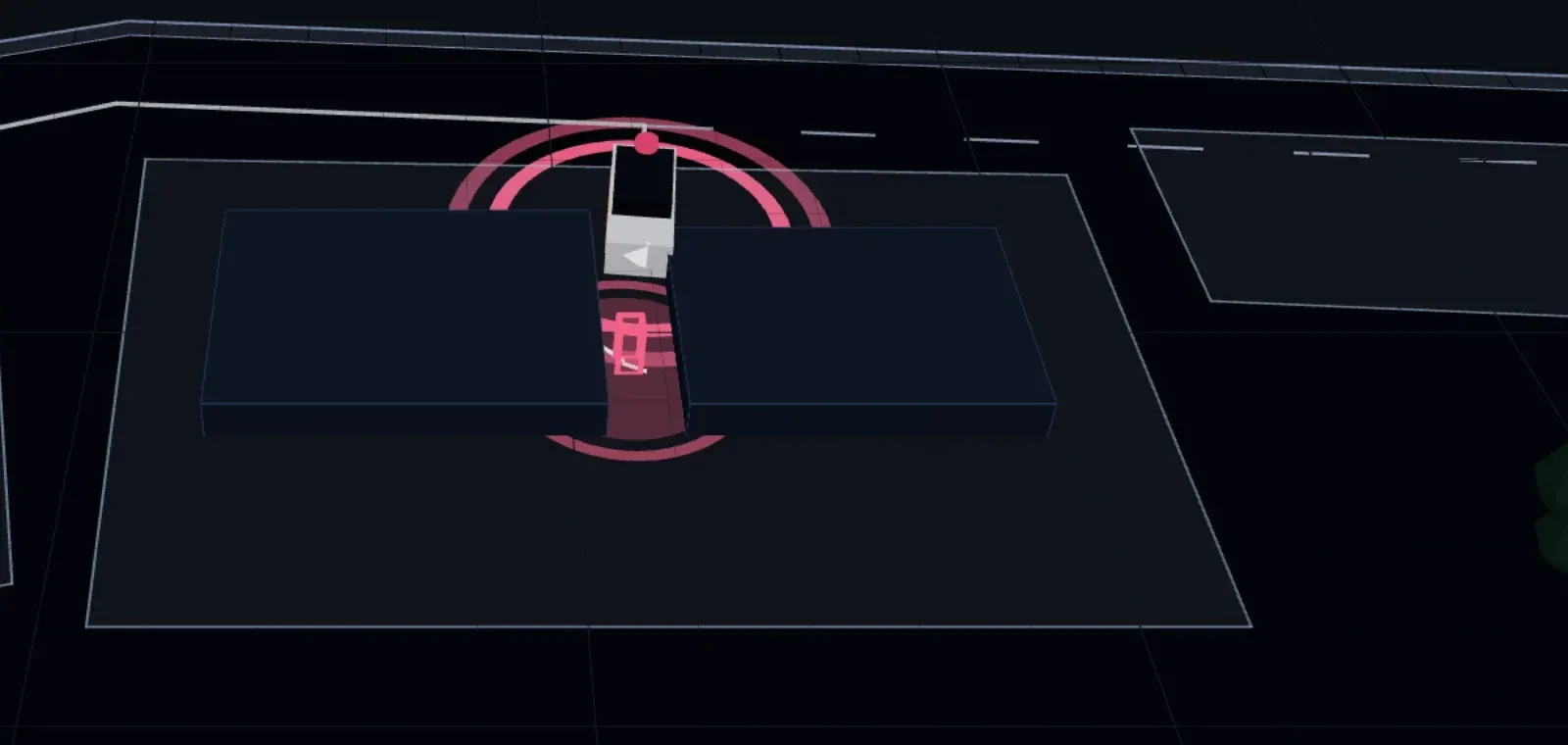
Mockup of the 3D replay of an alert in SeaX View: zone Z2 · Sheds at around 03:32, the SX-1 robot between the two sheds and the detected person marked in red, with the alert timeline.Mockup of the 3D replay of an alert in SeaX View: zone Z2 · Sheds at around 03:32, the SX-1 robot between the two sheds and the detected person marked in red, with the alert timeline.
How the robot and the person moved, minute by minute.

The robot’s cameras look at your site, and you decide who looks at them.
Mockup · sample data
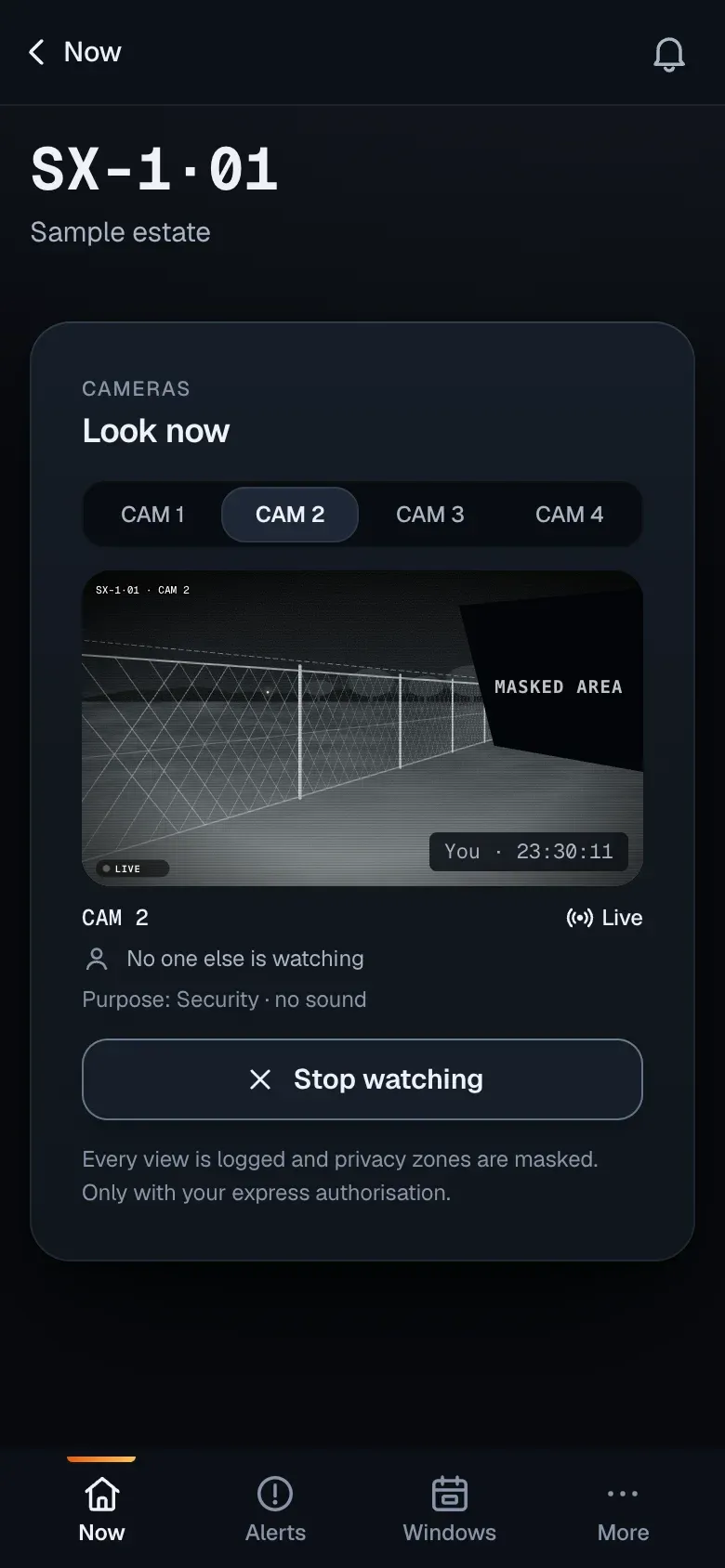
Mockup of “Look now” in SeaX View: camera 2 of the SX-1·01 robot live, with a masked area in black, the “You” watermark with the time, “No one else is watching” and “Only with your express authorisation”.
Look now: the masked area, who is watching (here, you) and nobody else watching.
  1. Masked areas

    Public roads, neighbouring properties and rest areas are masked in the image. You approve those areas.
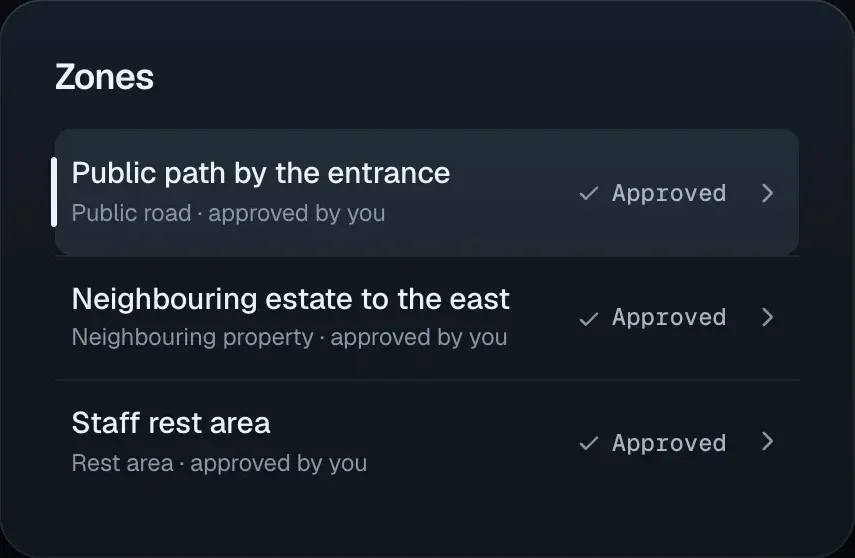
    Mockup of the privacy zones list: public path by the entrance, neighbouring estate to the east and staff rest area, all three approved by you.
  2. Who has looked

    Every view is logged: who, when and what. And while someone is watching, their name sits on the image.
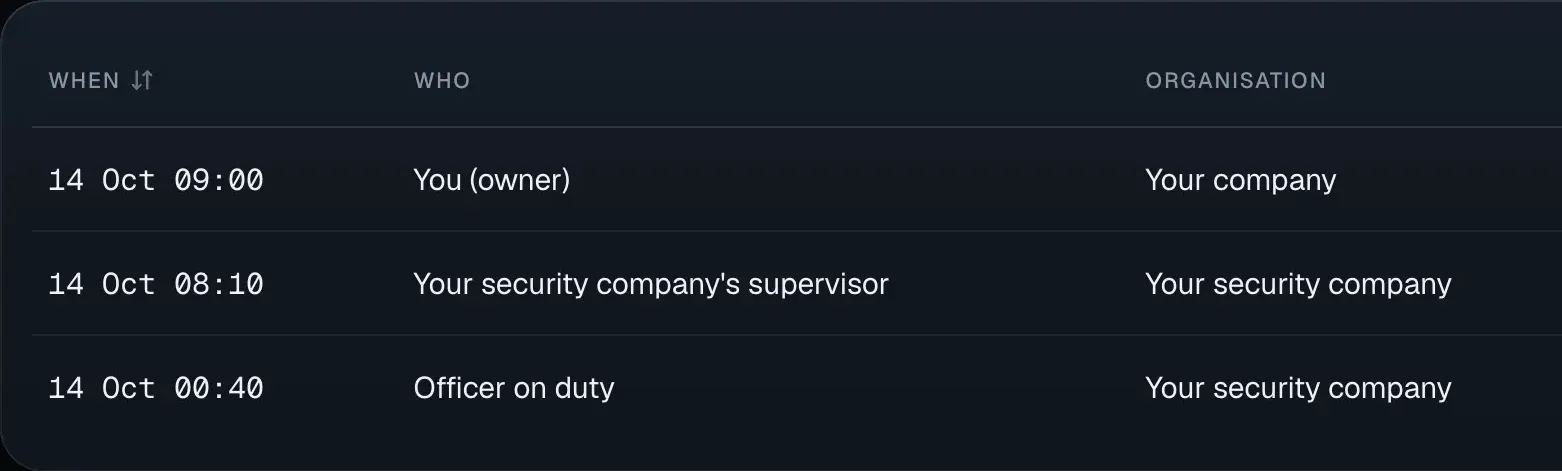
    Mockup of “Who has looked at your cameras”: three entries with date and time, who looked and from which organisation: you, your security company’s supervisor and the officer on duty.
  • Every alert, its record

    Every alert leaves a record: photos, time, position and who decided. You can keep it as evidence.

  • Each one sees their part

    Whoever handles your alerts, you and the technician: each with their own access.

  • The map, only for your robots

    Your site map is not shared with other sites or other customers.
Robot privacy policy
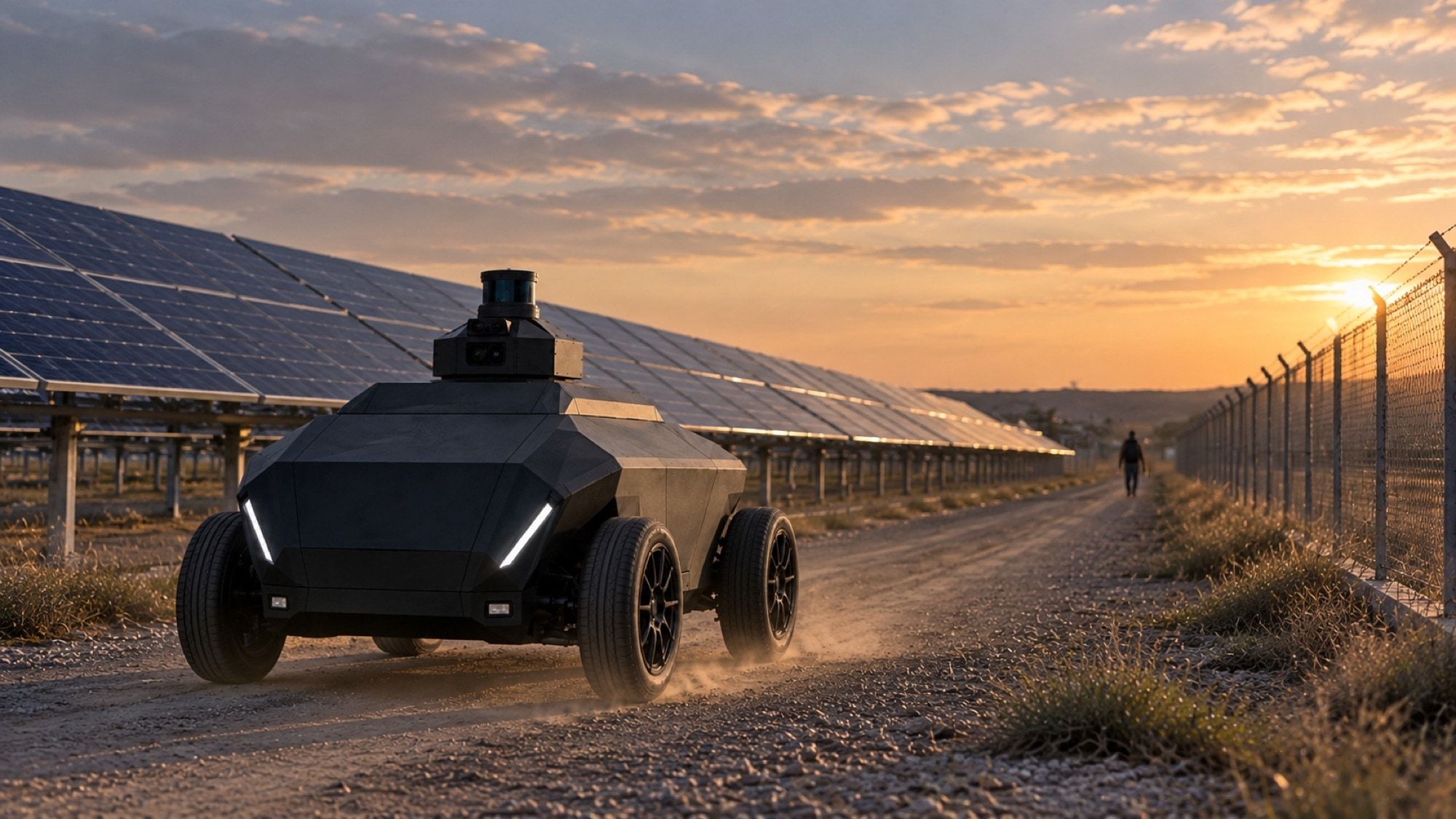
Render of the SX-1 robot at sunset beside the panel rows of a solar plant, with its front lights on.
Render
This is the SX-1See the SX-1 robot

Contact

Let us show you the platform

Tell us about your site and who handles your alerts today.

Who are you?

Your email app opens with the message ready for [email protected].

Book a demoEmail us